 DrawPiko
01 / Start
Your first drawing
Meet the canvas, draw a few strokes, and save your work.
Artwork library → + → New canvas. Tap an artwork thumbnail to reopen it.
Platforms and interface differences
One handbook for Android · iOS · HarmonyOS. The core workflow is shared. Button positions, system file pickers and stylus capabilities vary by platform, screen and version. App captures are labeled Android or iOS. Numbered markers match the controls and explanations; workflow diagrams are labeled separately. Follow the controls in your installed version.
Follow the screen
Numbers identify controls or interaction areas. Expand each screen for instructions; open the image to enlarge it. Positions can differ by platform.
01 Start with a preset or custom canvas iOS
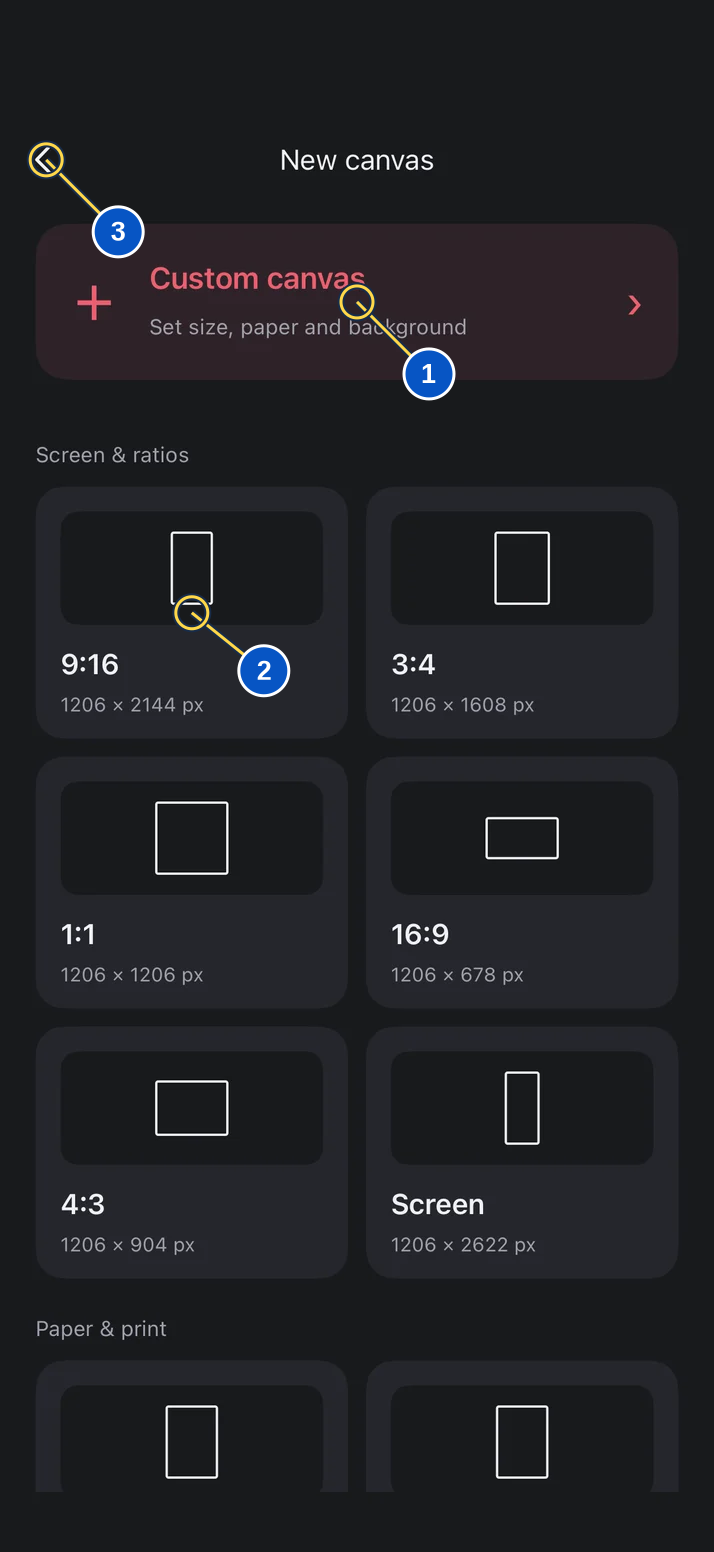
- Custom canvas
Open this card to set custom width, height and other canvas values.
- Size preset
Choose a preset after reading the pixel dimensions on its card.
- Back to the library
Return without treating unconfirmed canvas settings as saved artwork.
02 Find the editor controls Android
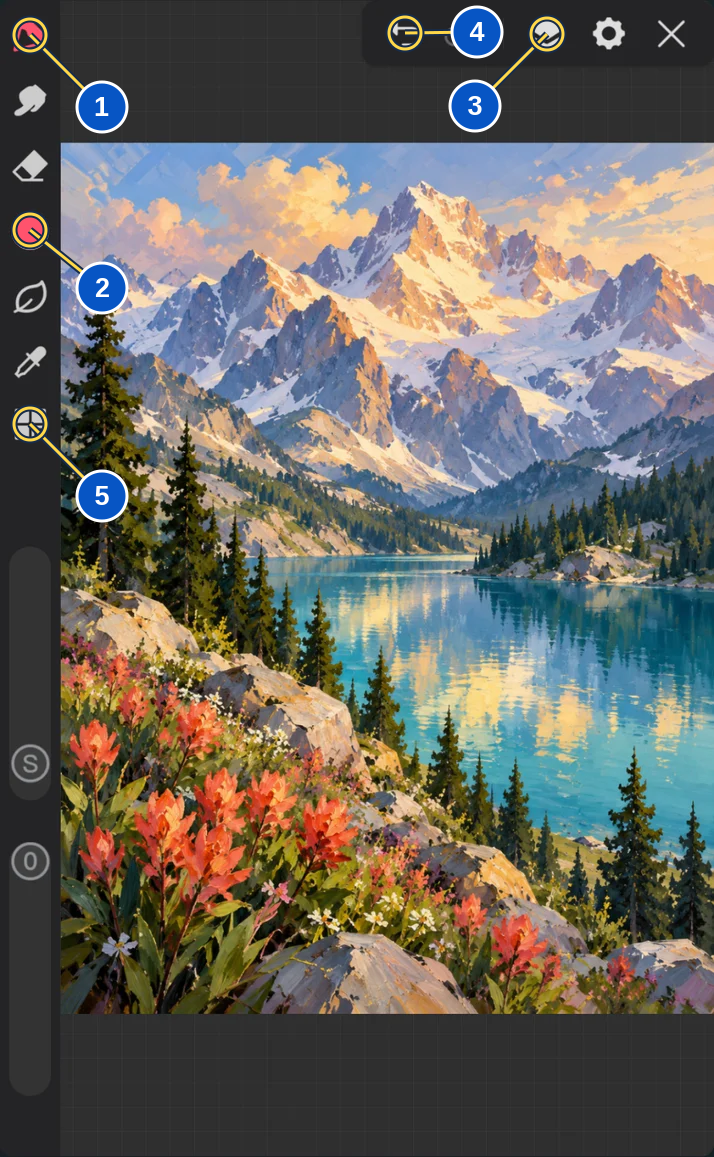
- Brush
Open brush selection, then try a stroke on the canvas.
- Foreground color
Tap the color button to open the color panel.
- Layers
Open Layers and check the layer you are editing.
- Undo
Reverse the previous action; the adjacent arrow is Redo.
- More tools
Find selection, shape and other drawing tools here.
1. Create a canvas
- Choose New canvas in the artwork library and set its width, height and background. Start with a modest canvas for your first practice.
- Locate Brush, Eraser, Color, Layers and Undo before drawing.
- Larger canvases and more layers use more memory. For printing, decide the target size and resolution first.
2. Make your first marks
- Select Brush, open the brush library and choose a regular drawing brush.
- Open Color, choose a color, adjust brush size and opacity, and draw a few strokes.
- Use Undo to reverse an action and Redo to restore it. Eraser changes the selected layer, so check that layer first.
3. Save and continue
- Return to the artwork library using the editor’s back or close control and let saving finish.
- Reopen the artwork and check that your strokes remain. Avoid forcing the app to close while saving.
- Use Export to share an image. Keep an editable draft or a data backup to continue working later.
4. Choose pixels and PPI
- Decide how the artwork will be used before setting width and height. Pixel dimensions matter for screen sharing; printing also requires a physical output size.
- For example, a 1000 × 1000 px image contains that many pixels regardless of its PPI metadata. Raising PPI alone cannot invent detail in an existing painting.
- When entering mm, cm or inches, physical size and PPI determine the resulting pixel dimensions. Recheck the final pixels and on-screen limits after changing units or PPI.
5. Complete a practice drawing in order
- Draw an outline, create a second layer below it, then add a different color on that lower layer.
- Hide and show the outline layer to confirm that the outline and color are on separate layers.
- Return to the library, let saving finish and reopen the work. Export a PNG and inspect it in Files or an image viewer.
6. Know what you saved
- A local draft is for continued editing; PNG/JPG exports are for viewing and sharing; an artwork ZIP backup is for separate storage and restoration.
- Website collections store template references, not your local drawing. Signing in does not by itself create a cloud backup.
- Before starting a large project, practise the full save → export → backup → restore workflow on a small drawing.
Choosing canvas settings
Swipe the table sideways to see all columns.
| Setting | Effect | Practical choice |
|---|---|---|
| Width and height (px) | Set pixel count and aspect ratio. | Try 1000 × 1000 px first, then choose dimensions for the intended use. |
| PPI | Connects pixels with physical print dimensions. | Check the target print size; increasing PPI is not a way to add image detail. |
| Background and paper | Set the canvas base or available paper appearance. | For transparent export, check whether background or paper remains visible. |
| Pixel canvas | Changes how some drawing tools behave. | Practise pixel art separately and check the available anti-alias settings. |
Troubleshooting
Why is Create unavailable?
Check width, height and PPI, including both the single-side and total-area limits shown by the current canvas panel.
Where did my artwork go?
Check the folder, search filters and Recently deleted. If saving reported an error, keep the app state and error text, then check free storage.
Try it yourself
Create a 1000 × 1000 px practice artwork with outline and color on two layers. Save, reopen, toggle each layer separately, and export a PNG.