 DrawPiko
07 / Files
Import, save and export
Choose between editable drafts and images for sharing.
Import: artwork library → top-right More → Import. Export: editor → Save and export. Labels can vary by version.
Platforms and interface differences
One handbook for Android · iOS · HarmonyOS. The core workflow is shared. Button positions, system file pickers and stylus capabilities vary by platform, screen and version. App captures are labeled Android or iOS. Numbered markers match the controls and explanations; workflow diagrams are labeled separately. Follow the controls in your installed version.
Follow the screen
Numbers identify controls or interaction areas. Expand each screen for instructions; open the image to enlarge it. Positions can differ by platform.
01 Artwork-library More menu iOS
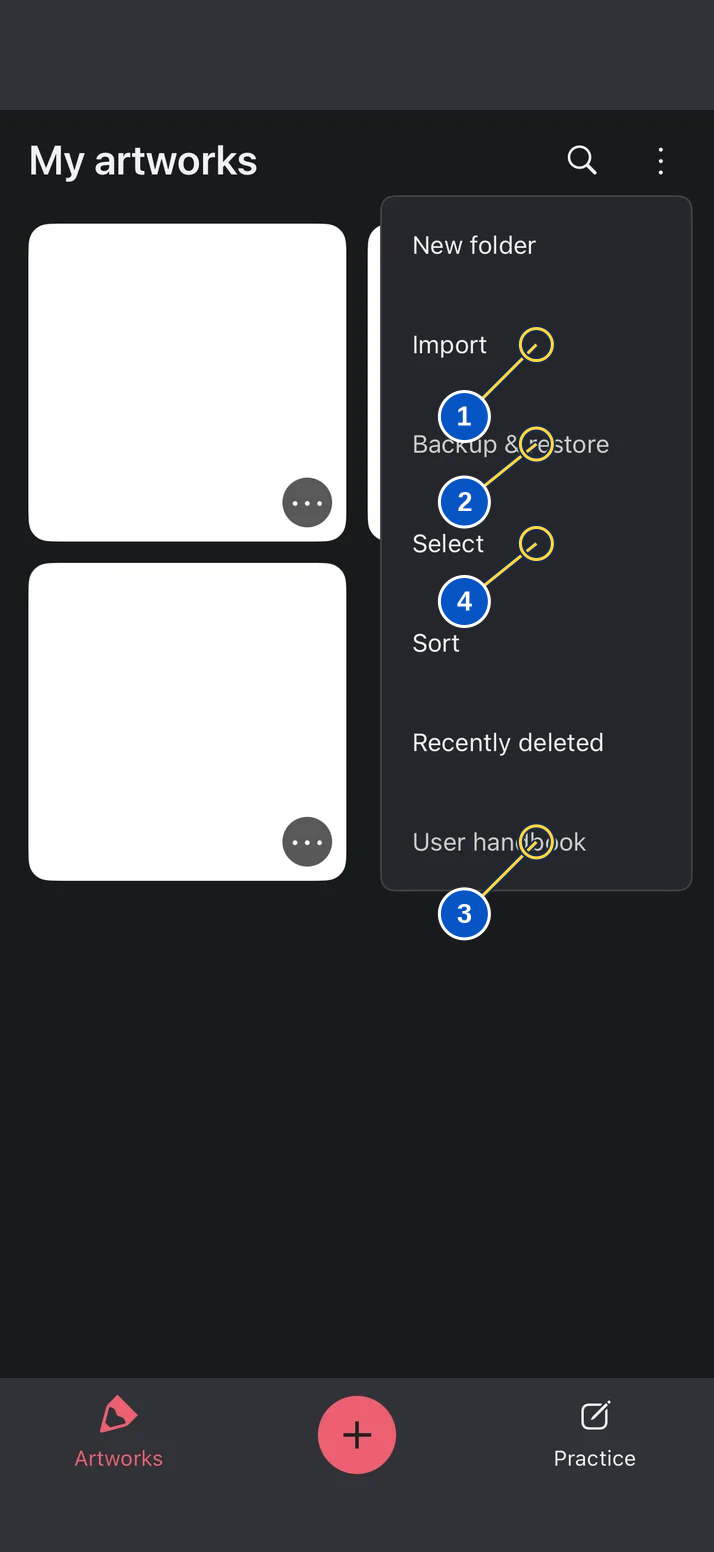
- Import
Choose an original image or draft, not a cover preview as layered artwork.
- Backup and restore
Use this visible entry to protect local artwork.
- User handbook
Open the website handbook in the app’s corresponding language.
- Select artworks
Enter selection, choose artworks, then find Collage.
02 Choose an export format Android
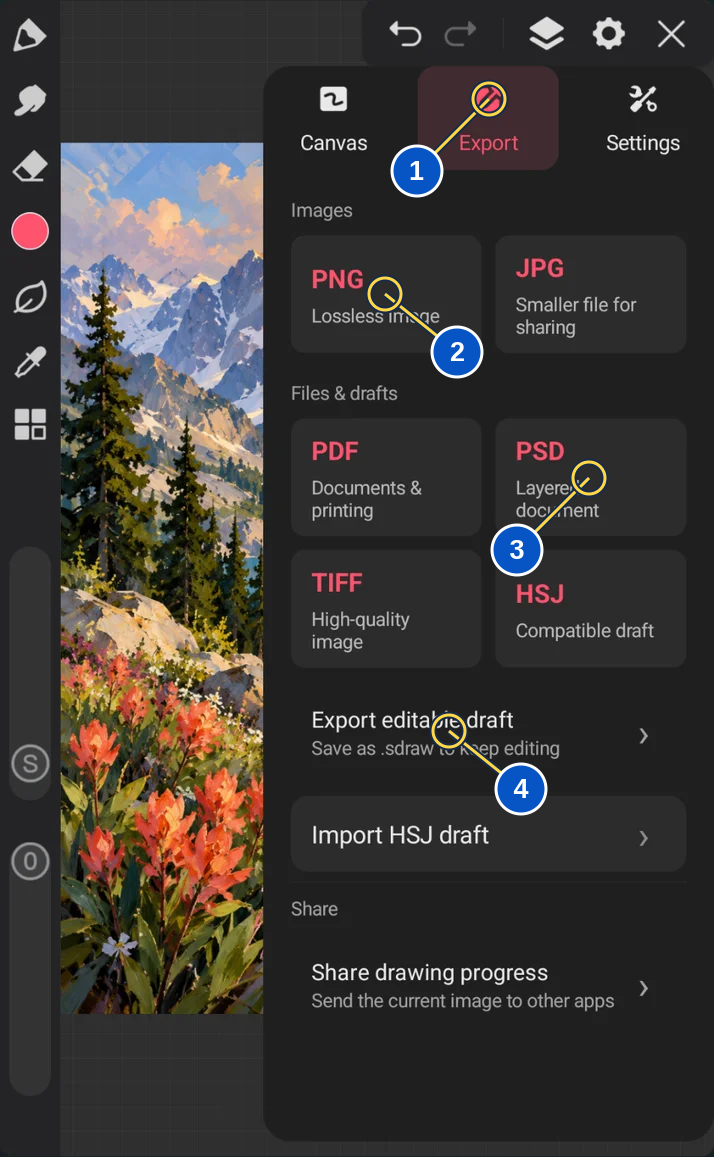
- Export tab
Open Export to see the formats offered by the installed version.
- PNG / JPG images
Use PNG for possible transparency or JPG for ordinary sharing. Check the artwork background.
- PSD handoff
For further editing elsewhere, try PSD and inspect it in the destination app.
- Editable draft
Keep editable data separately from finished images and use artwork backup for complete migration.
1. Import images and drafts
- Use Open, Import or the More menu in the artwork library, then choose the file in the system picker.
- A regular image usually cannot recover the original’s separate layers. After importing a layered file, check its layers, size and appearance.
- For HSJ downloads, read Download and import HSJ. A cover image is not the layered draft.
2. Choose an export format
- Open Save and export in the editor. PNG suits images with transparency; JPG suits ordinary image sharing.
- Try PSD to continue in another drawing app, then check layers, blending and text in that app.
- Options such as PDF and TIFF depend on the current export panel. Choose size or quality, wait for completion and confirm where the file was saved.
3. Check the result
- Open the exported file in an image viewer or Files and inspect its edges, background, orientation and dimensions.
- A transparent PNG needs a transparent artwork background. Choosing PNG alone does not remove existing background content.
- An image export is not an editable artwork backup. Keep the original draft and an independent backup.
4. Import the actual file
- Confirm that the file is completely downloaded in Files. A cloud-drive filename does not mean its contents are already available locally.
- For drafts, PSD or HSJ, select the original file rather than a chat preview image. Do not convert formats by changing the extension.
- After importing, inspect dimensions, layer count, visibility and appearance. Keep the original if anything differs.
5. Choose a format for the destination
- Check PNG for transparent illustrations or icons, JPG for ordinary image sharing, and PSD for further cross-app editing with a destination-app check.
- PDF suits document-style delivery; TIFF suits workflows requesting it. Neither automatically replaces complete drafts and replay backups.
- For app editing data or migration, also save an editable draft or ZIP backup. Files with the same name but different extensions are not interchangeable.
6. Verify an export
- Check background, visible layers, orientation and dimensions before exporting. Complete the final save action in the system save or share panel.
- Open the result in Files or an image viewer. Inspect transparent edges, text, color, crop and sharpness. Try a different viewing background to check transparency.
- Keep a local export before sharing. If another app shows differences, compare copies and record the format and source.
Formats and retained content
Swipe the table sideways to see all columns.
| Format | Primary use | Check before relying on it |
|---|---|---|
| PNG | Lossless image sharing with possible transparency. | Configure transparency in the artwork; it does not retain the complete editing structure. |
| JPG | Ordinary image sharing. | No transparent background; compression can affect thin lines and text. |
| PSD | Further editing in another drawing app. | Check blending, masks, text and effects in the destination app. |
| PDF / TIFF | Document or image delivery offered by the panel. | Not a replacement for complete app artwork and replay backups. |
| Draft / ZIP backup | Continued editing, separate backup and restoration. | Keep the original and try restoring a few works before migrating devices. |
Troubleshooting
Why will a cloud file not import?
Download the complete contents through Files first, check space and size, then choose a locally readable original.
Why is the PNG background white?
Check the artwork background, paper and white layers. Selecting PNG does not remove existing white content.
Where did the exported image go?
Check the chosen folder and complete the system share/save action. Saving to Files does not always add the image to Photos.
Try it yourself
Export the same artwork as PNG and JPG and open each in Files. If using PSD, check its layers and appearance in the intended destination app.