 DrawPiko
12 / Advanced
Transform and composition
Move, scale and rotate content while checking selections, pixels and confirmation.
Check the layer or create a selection → Transform in More tools → Preview → Apply.
Platforms and interface differences
One handbook for Android · iOS · HarmonyOS. The core workflow is shared. Button positions, system file pickers and stylus capabilities vary by platform, screen and version. App captures are labeled Android or iOS. Numbered markers match the controls and explanations; workflow diagrams are labeled separately. Follow the controls in your installed version.
Follow the screen
Numbers identify controls or interaction areas. Expand each screen for instructions; open the image to enlarge it. Positions can differ by platform.
01 Find more drawing tools iOS
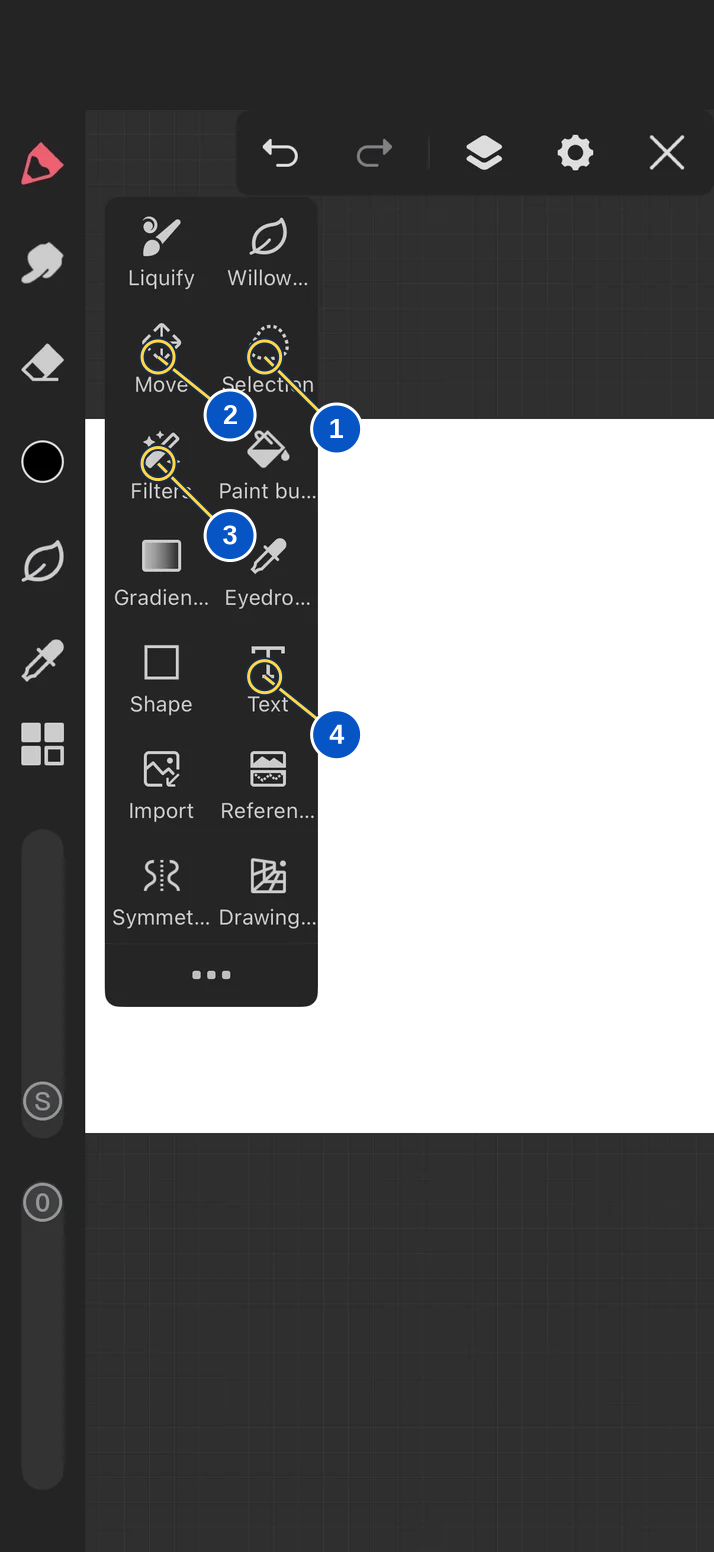
- Selection
Create a region before local drawing or further editing.
- Move
Check the target layer or selection before moving content.
- Filters
Try effects on a copied layer and compare before and after.
- Text
Enter text editing and check typography before placement.
02 Move: apply or cancel iOS
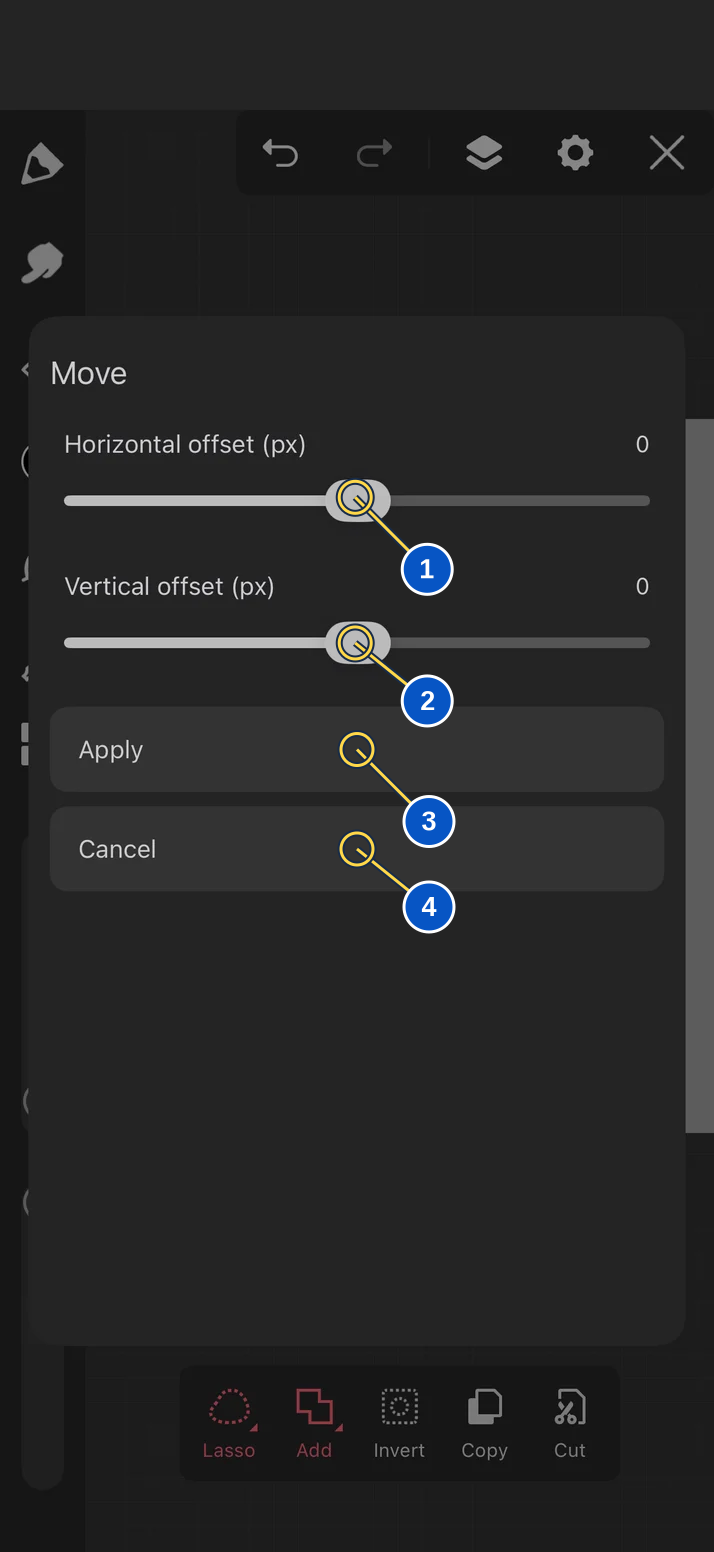
- Horizontal offset
Adjust the horizontal-offset slider and inspect content position.
- Vertical offset
Adjust the vertical position separately and practise on a copy.
- Apply
Commit the move when satisfied and inspect the position.
- Cancel
Cancel an unwanted result and check that the image returns.
1. Choose the content first
- Select a layer containing the target. Make a selection first when transforming only part of that layer.
- Open Transform and check the preview bounds. Moving the view is different from moving artwork content.
- Duplicate a layer or the whole work before substantial changes.
2. Adjust position and proportions
- Use the current panel’s move, scale, rotate or flip controls, checking which handle and object you are manipulating.
- Look for a proportion-lock control when keeping the aspect ratio. Do not assume every drag is proportional.
- Zoom out to check composition, then zoom in to inspect text, strokes and edges.
3. Apply, cancel and respect the bounds
- Apply when satisfied, or cancel and select the region again. Distinguish preview changes from committed changes.
- Treatment of content outside the canvas depends on the tool and version. Do not use that area as reliable hidden storage; keep a copy first.
- After applying, inspect position and size. Undo promptly if needed and retry from the original copy.
4. Avoid repeated resampling
- Shrinking pixel content and enlarging it again can blur it. Increasing PPI cannot restore lost detail.
- Work from an original copy and aim for the target size in one operation instead of repeatedly shrinking, enlarging and merging.
- For clear text, settle the main composition before placing it and inspect the export at its final use size.
Supplement: workflow illustration
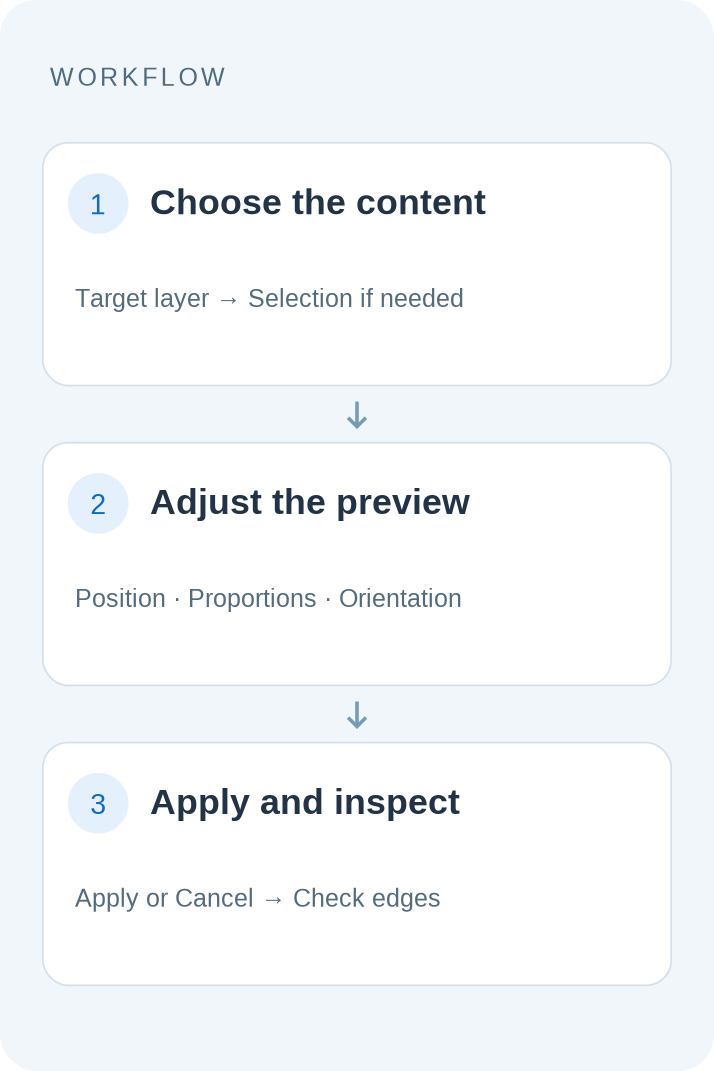
Transform checkpoints
Swipe the table sideways to see all columns.
| Stage | Inspect | Why |
|---|---|---|
| Before | Layer, selection and an original copy. | Avoid moving the wrong content. |
| Preview | Proportions, orientation, position and canvas bounds. | Avoid distortion and important details outside the canvas. |
| After applying | Thin lines, text and transparent edges. | Pixel resampling can affect sharpness. |
| After export | Final dimensions and composition. | Screen zoom does not verify the exported file. |
Troubleshooting
Why did the whole layer move?
Check whether you made a local selection before entering Transform and selected the correct layer.
Why is it blurry after shrinking and enlarging?
Return to the unshrunk original copy and adjust again rather than repeatedly rescaling.
Try it yourself
On a copy, select a painted shape, move, rotate and scale it once, then apply and deselect. Compare its edges and position with the original.