 DrawPiko
10 / Collage
Artwork collages and crop positioning
Combine artworks into one image and adjust each visible area.
Artwork library → More → Select → choose 2–4 artworks → Collage. A version supporting this feature is required.
Platforms and interface differences
One handbook for Android · iOS · HarmonyOS. The core workflow is shared. Button positions, system file pickers and stylus capabilities vary by platform, screen and version. App captures are labeled Android or iOS. Numbered markers match the controls and explanations; workflow diagrams are labeled separately. Follow the controls in your installed version.
Follow the screen
Numbers identify controls or interaction areas. Expand each screen for instructions; open the image to enlarge it. Positions can differ by platform.
01 Artwork-library More menu iOS
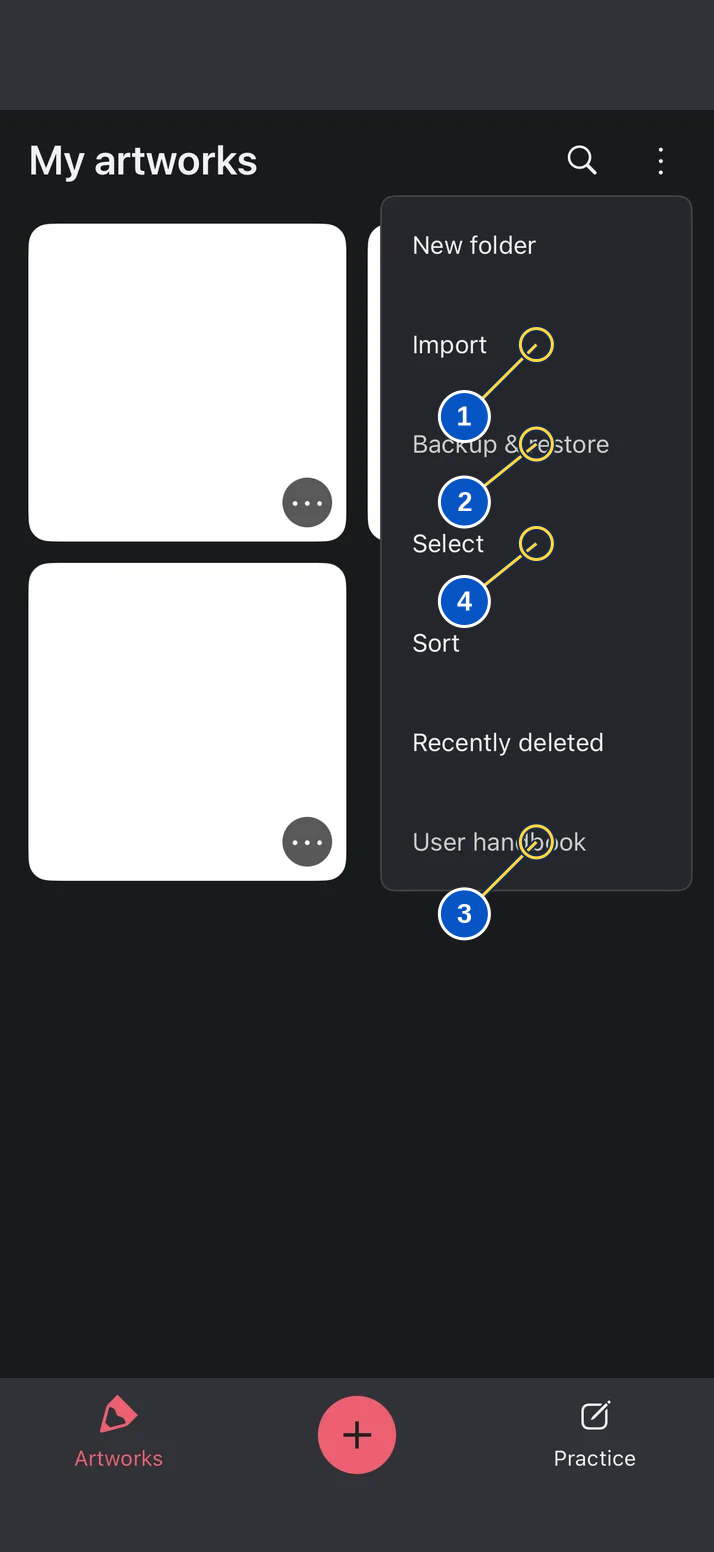
- Import
Choose an original image or draft, not a cover preview as layered artwork.
- Backup and restore
Use this visible entry to protect local artwork.
- User handbook
Open the website handbook in the app’s corresponding language.
- Select artworks
Enter selection, choose artworks, then find Collage.
1. Select artwork
- In a version with artwork collages, enter multi-select in the library and choose the works to combine.
- Do not include folders. Check the selection count against the on-screen requirements, then choose Collage.
- If the control is missing in your installed version, check for an app update.
2. Arrange the composition
- Choose an available layout in the collage preview and check the artwork in each position.
- Use the ordering controls to rearrange works. Open crop positioning for an individual work and move its visible area as needed.
- Check faces, signatures and important details for unwanted cropping, then review the overall preview.
3. Export and inspect
- Export when the composition is ready and wait for the image to finish saving.
- Open the result and inspect its order, crops and edges before sharing.
- A collage is a combined image. Keep the original drafts and backups to continue editing each artwork.
4. Check count, order and folders
- Collages currently use 2–4 artworks and do not accept folders in the selection. Check count and item types if the control is unavailable.
- Inspect which artwork appears in each cell and use Artworks to adjust order and crop positioning. Do not rely only on selection order.
- For mixed portrait, landscape and tall works, choose the overall ratio and layout before fine-tuning each crop.
5. Fit versus fill
- Fit aims to show the whole artwork and can leave space. Fill covers the cell and may crop its edges.
- In Fill, drag an individual work as prompted to position its crop or use the available alignment controls. A fitted image without crop room may not visibly move.
- After changing layout or order, recheck faces, signatures and edges in every cell instead of only the first.
6. Check before exporting
- Review order, background, ratio and any text. Leave room around important edge details.
- Open the exported image and compare each crop with the preview, checking that all selected artworks are included.
- A collage export is a combined image. It does not replace each original’s layered draft and complete backup.
Supplement: workflow illustration
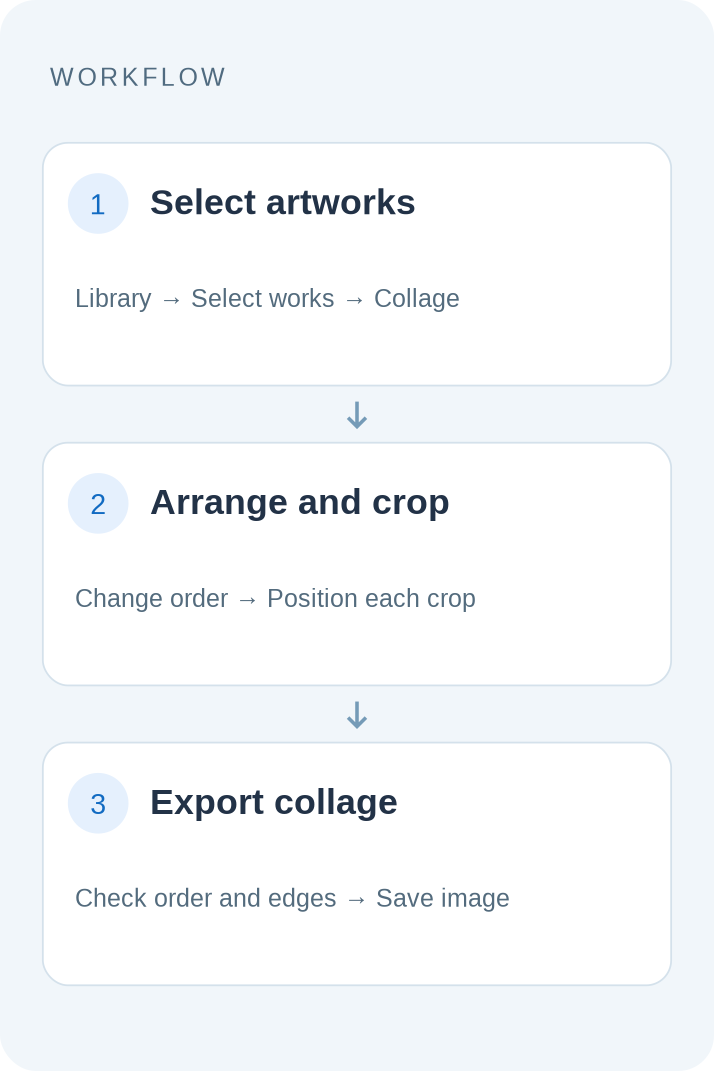
Collage controls
Swipe the table sideways to see all columns.
| Control | Effect | What to inspect |
|---|---|---|
| Overall ratio | Changes the final canvas shape. | The portrait or landscape proportions needed for sharing. |
| Layout | Changes the cells assigned to artworks. | Whether cell shapes suit the source artworks. |
| Fit | Prioritizes the complete image. | Whether the resulting empty space is acceptable. |
| Fill | Prioritizes covering the cell. | Whether faces, signatures or details are cropped. |
| Order and crop position | Choose placement and the visible area within each cell. | Recheck every work after reordering. |
Troubleshooting
Why is Collage disabled?
Check for 2–4 artworks with no folders or ineligible items. If the entry is absent, check the installed version.
Why does dragging have no effect?
Check Fill and whether there is crop room, and enter the individual artwork’s positioning controls where required.
Why were important edge details cropped?
Review that cell’s Fill setting and crop position. Switch to Fit or a different layout if needed, then export again.
Try it yourself
Choose one landscape and one portrait practice image. Compare Fit and Fill, reposition an important detail into view, export and inspect the result.