 DrawPiko
02 / Canvas
Canvas and gestures
Navigate your canvas, undo changes, and adjust editor preferences.
Editor toolbar → Canvas view; gear → editor settings → gesture or display controls.
Platforms and interface differences
One handbook for Android · iOS · HarmonyOS. The core workflow is shared. Button positions, system file pickers and stylus capabilities vary by platform, screen and version. App captures are labeled Android or iOS. Numbered markers match the controls and explanations; workflow diagrams are labeled separately. Follow the controls in your installed version.
Follow the screen
Numbers identify controls or interaction areas. Expand each screen for instructions; open the image to enlarge it. Positions can differ by platform.
01 Canvas and editing controls Android
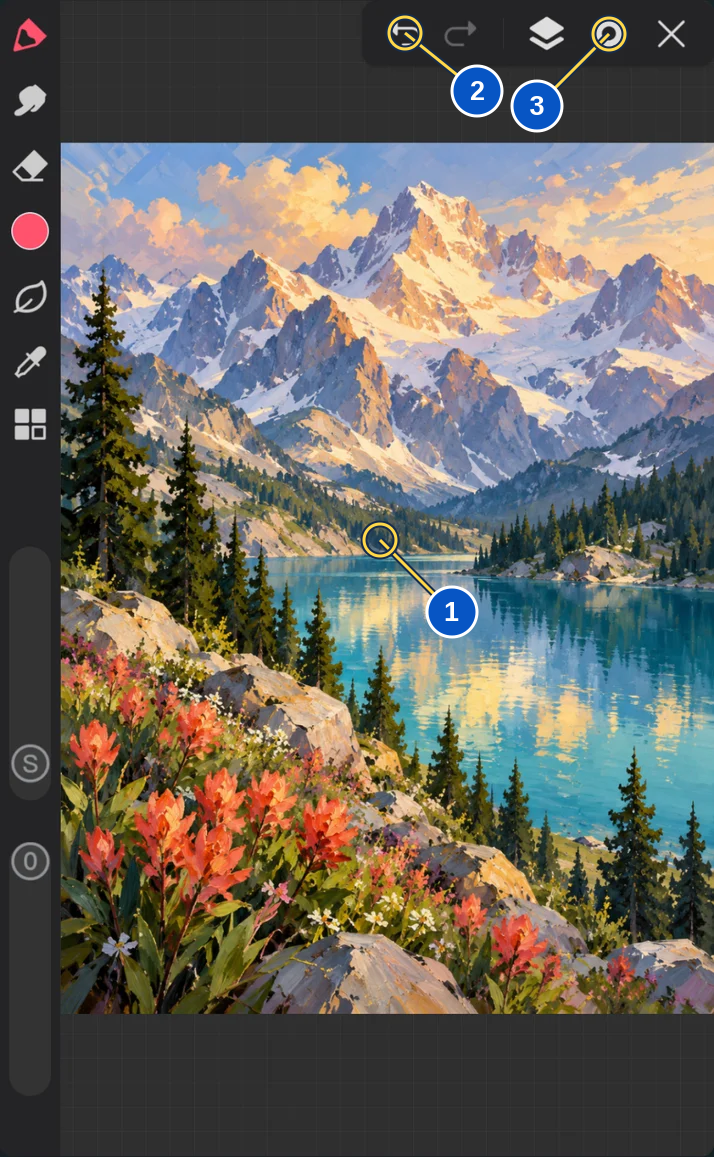
- Canvas navigation area
Use two fingers within the canvas to navigate; view zoom does not change pixel dimensions.
- Undo and redo
Check the result with the buttons before trying enabled gestures.
- Editor settings
Open the gear menu and inspect the display and gesture options available in your version.
1. Navigate the view
- Pinch with two fingers to zoom into details. Take care not to draw accidentally while moving or rotating the view.
- Zoom changes the display scale; it does not increase the artwork’s pixel resolution.
- Use Canvas view or the related view controls for display changes. Use canvas editing or Transform to change the artwork itself.
2. Undo, redo and gestures
- Start with the toolbar’s Undo and Redo buttons and check the result of each action.
- Look under Gestures in editor settings. Options such as two-finger tap to undo depend on their switches.
- Stylus input, finger drawing and system gestures depend on the device. If a gesture does not work, use the button and check your settings.
3. Recover your working view
- If the canvas looks empty, check its position, visible layers and the selected layer before deleting anything.
- If strokes do not appear, check color, size, opacity, layer locks and active selections.
- Undo history is for editing; it is not a substitute for a separately saved artwork backup.
4. View changes versus artwork edits
- Zooming and panning change where you look. To move painted content, select it and use Transform.
- Rotating the view does not necessarily rotate the exported artwork. Use an actual image-editing command to change artwork orientation.
- Zoom out after finishing a detail to check the composition, then return to the working area.
5. Check fingers, stylus and undo settings
- Check switches for two-finger undo and three-finger redo separately. Do not assume every gesture is enabled.
- Draw three strokes, undo one with the toolbar, then redo it. Once buttons work, repeat with the enabled gestures.
- If fingers do not draw, check finger-drawing settings. If a stylus does not draw, check pairing, device support and the selected tool.
6. Troubleshoot the view in order
- Check zoom and position first, layer visibility and opacity next, then selections, locks and masks.
- Visible pixels at high zoom are not necessarily corruption. Check the display scale before judging sharpness.
- Do not repeatedly clear layers or uninstall to troubleshoot a display issue. Duplicate or back up the work first.
What each action changes
Swipe the table sideways to see all columns.
| Action | Target | How to check |
|---|---|---|
| Zoom and pan | Your view on the screen. | Return to an overall view and find the artwork. |
| Transform | Content in the selected layer or selection. | Compare content position and size before and after applying. |
| Canvas sizing or cropping | Artwork bounds and available space. | Keep a copy and check all edges for lost content. |
| Undo and redo | Currently reversible editing actions. | Watch each step; history is not a file backup. |
Troubleshooting
Why does two-finger tap not undo?
Check the switch, distinguish tapping from dragging or pinching, and use the toolbar to see whether an undoable action remains.
Why does the canvas look empty?
Return to an overall view, check layer visibility and opacity, then confirm the artwork and folder you opened.
Try it yourself
Draw three colored lines. Zoom, pan, undo and redo, then confirm that the exported image contains the expected three lines.