 DrawPiko
08 / Backup
Artwork and backups
Organize your library and protect editable drafts before switching devices.
Artwork library → top-right More → Backup & restore; batch actions can back up selected works.
Platforms and interface differences
One handbook for Android · iOS · HarmonyOS. The core workflow is shared. Button positions, system file pickers and stylus capabilities vary by platform, screen and version. App captures are labeled Android or iOS. Numbered markers match the controls and explanations; workflow diagrams are labeled separately. Follow the controls in your installed version.
Follow the screen
Numbers identify controls or interaction areas. Expand each screen for instructions; open the image to enlarge it. Positions can differ by platform.
01 Artwork-library More menu iOS
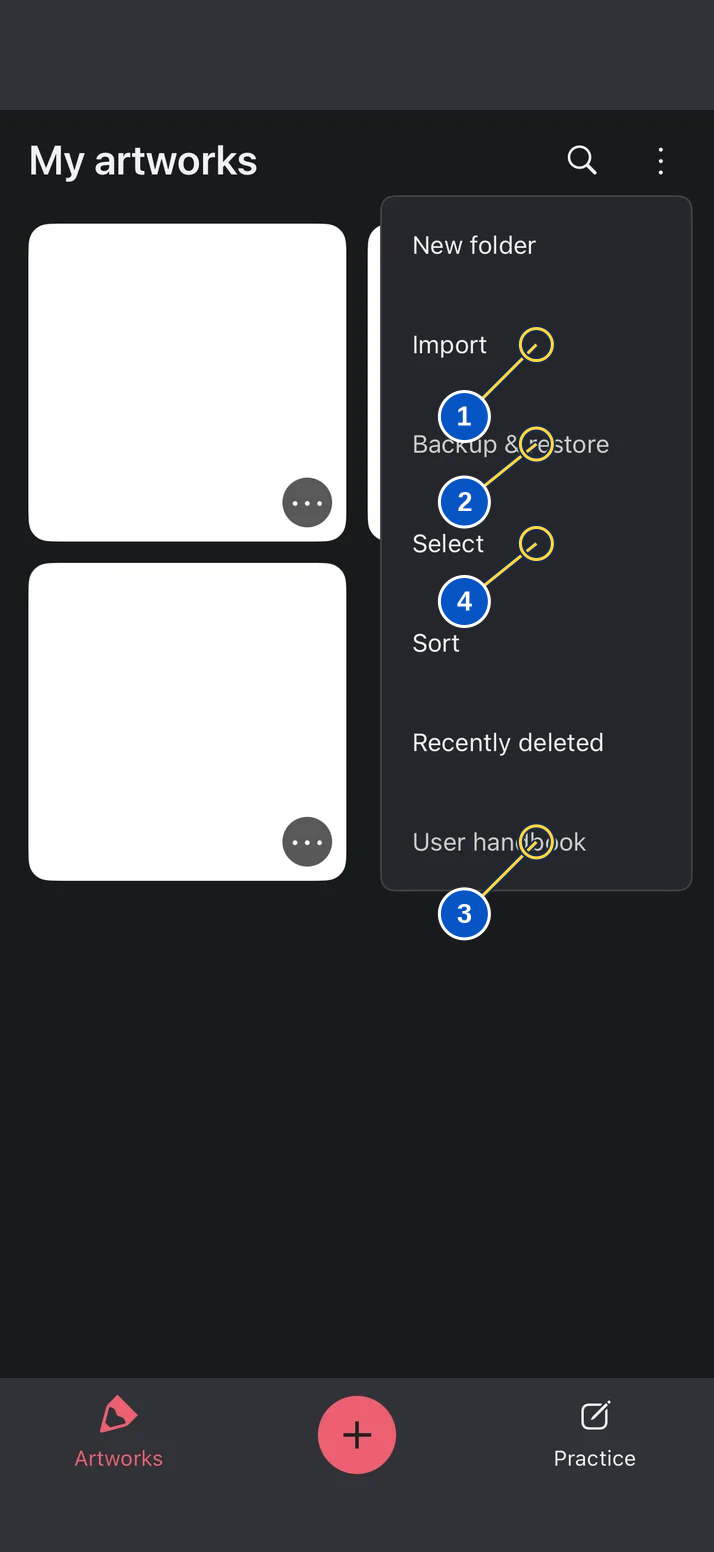
- Import
Choose an original image or draft, not a cover preview as layered artwork.
- Backup and restore
Use this visible entry to protect local artwork.
- User handbook
Open the website handbook in the app’s corresponding language.
- Select artworks
Enter selection, choose artworks, then find Collage.
02 Backup and restore page iOS
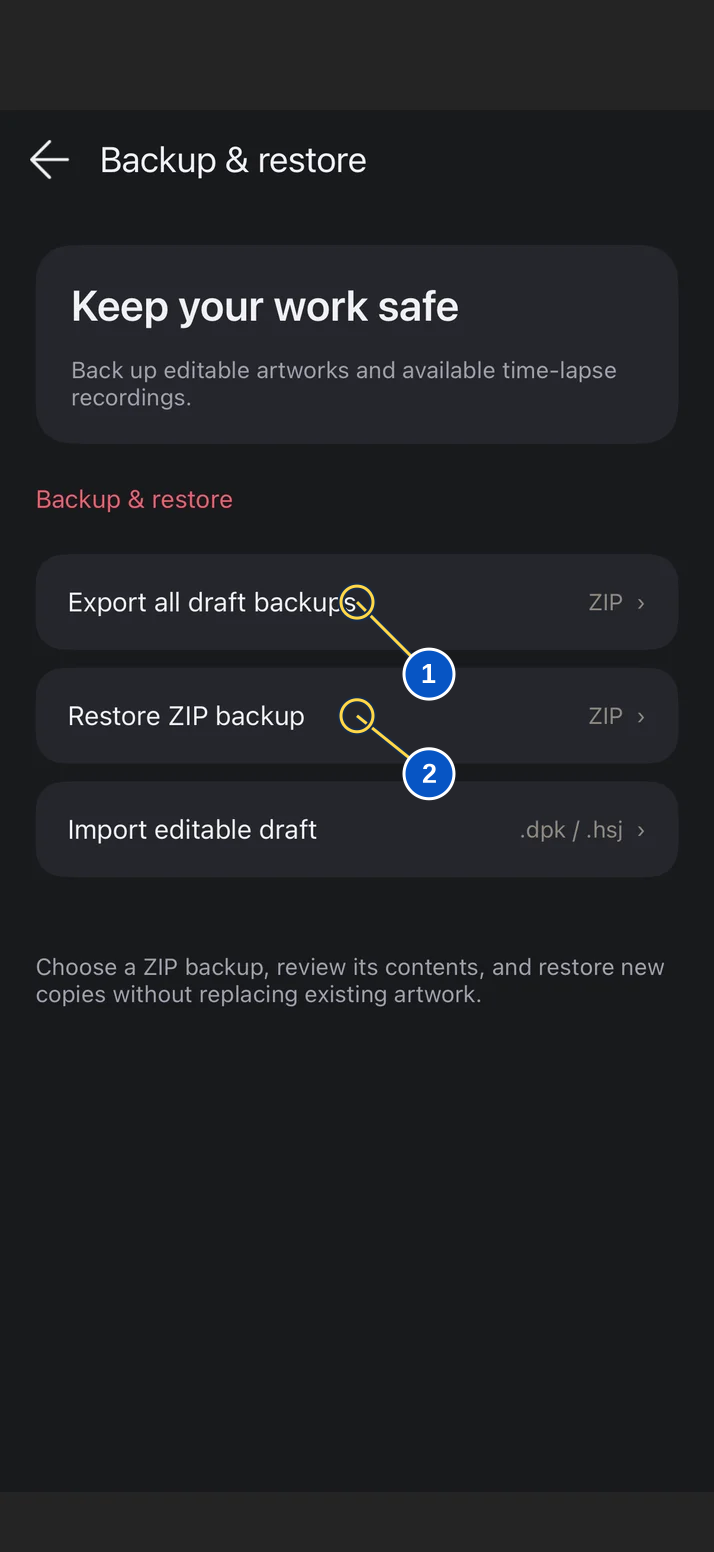
- Export artwork backup
Save the ZIP outside the app and wait for completion.
- Restore from ZIP
Choose the complete ZIP, review its contents and restore new copies.
1. Organize the library
- Select artwork in the library to find rename, move, duplicate or batch actions. Check the selected count before proceeding.
- Duplicate artwork before trying substantial changes, then edit the copy.
- Follow the app’s deletion and Recently deleted prompts. Recently deleted is not a long-term backup.
2. Export a backup
- Open Backup & restore from the artwork library’s More menu and export all artwork. Batch actions can also back up selected artwork where offered.
- Let the export finish, then save the ZIP outside the app, such as in Files, on a computer or in your own cloud storage.
- Available time-lapse data is included in backups that support it. PNG, JPG and PSD do not replace a complete backup.
3. Restore and verify
- Choose Restore ZIP backup in Data backup and select the ZIP directly; no manual extraction is needed.
- After validation, review the artwork count and restore prompt, then restore new copies. Keep the ZIP until you have checked the result.
- Open restored artwork and inspect layers and content. Check replay for artwork with recordings. Try a few works before relying on cross-device compatibility.
4. Confirm the backup scope
- Check the folder, search filters and whether you are backing up all artwork or a selection. Review counts and any folder-handling prompt.
- Return to the library to finish saving before backing up. Wait for completion; do not rely on a partially written file after an error.
- Use recognizable filenames, but verify the actual contents by restoring. A reassuring filename is not proof of a valid backup.
5. Keep the ZIP outside the app
- Choose a location outside private app storage in the system save panel. Files stored only inside the app can still be lost when uninstalling.
- After copying to a computer or your own cloud drive, check for nonzero size and completed syncing. Keep an older verified backup until the new one passes a restore check.
- Website collections and sign-in do not automatically upload local work. Saving a backup to your own cloud drive is a separate file operation.
6. Verify restoration before migrating
- Choose the ZIP directly and let the app validate and display its contents. Do not extract, alter and rezip its internal files first.
- Restore new copies, wait for completion, then inspect artwork count, layers and appearance rather than relying on the existing originals.
- If replay data is included, open it separately to check. Verify the new device before considering changes to data on the old one.
Supplement: workflow illustration
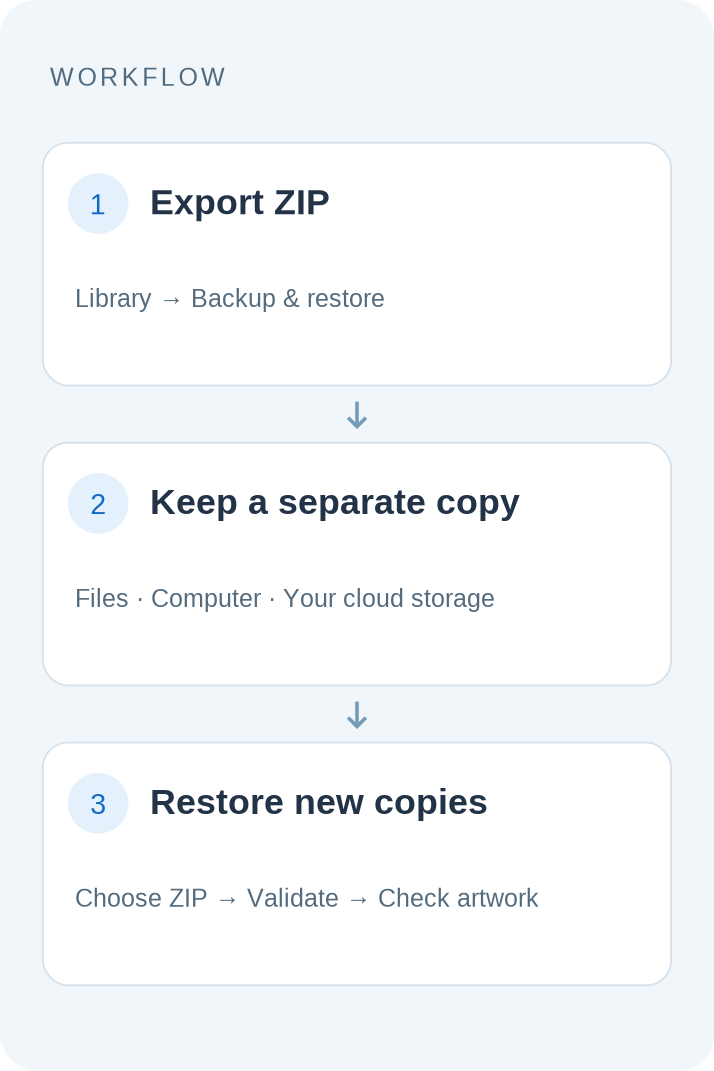
Ways to protect artwork
Swipe the table sideways to see all columns.
| Method | Useful for | Does not replace |
|---|---|---|
| Local saving | Continuing editing later. | A separate backup outside the device. |
| Duplicate artwork | Trying edits on the same device. | Protection from losing the device or uninstalling. |
| Recently deleted | Recovering accidental deletion where offered. | Long-term archives or migration backups. |
| Image export | Keeping a viewable finished image. | Complete layers and recorded drawing steps. |
| Artwork ZIP backup | Restoring editable copies from the included data. | Content checks, safe file storage and compatibility verification. |
Troubleshooting
Is it normal to get just one ZIP?
Yes. ZIP is the backup container. Select it in the app’s restore flow without manually extracting it.
Why are there duplicate artwork names after restore?
Restoring new copies can produce matching names. Check layers, dates and replay before organizing them.
What if backup fails or storage is full?
Keep the originals and check free space locally and at the destination. Back up smaller batches if needed and verify each one.
Try it yourself
Back up a two-layer practice artwork to a ZIP in Files and restore it as a new copy. Open both original and copy and confirm that their layers remain editable.