 DrawPiko
09 / Replay
Time-lapse replay and video
Watch recorded drawing steps and export a replay video.
Open artwork → Save and export → Time-lapse replay. Choose quality from the current video export panel.
Platforms and interface differences
One handbook for Android · iOS · HarmonyOS. The core workflow is shared. Button positions, system file pickers and stylus capabilities vary by platform, screen and version. App captures are labeled Android or iOS. Numbered markers match the controls and explanations; workflow diagrams are labeled separately. Follow the controls in your installed version.
Follow the screen
Numbers identify controls or interaction areas. Expand each screen for instructions; open the image to enlarge it. Positions can differ by platform.
01 Canvas and editing controls Android
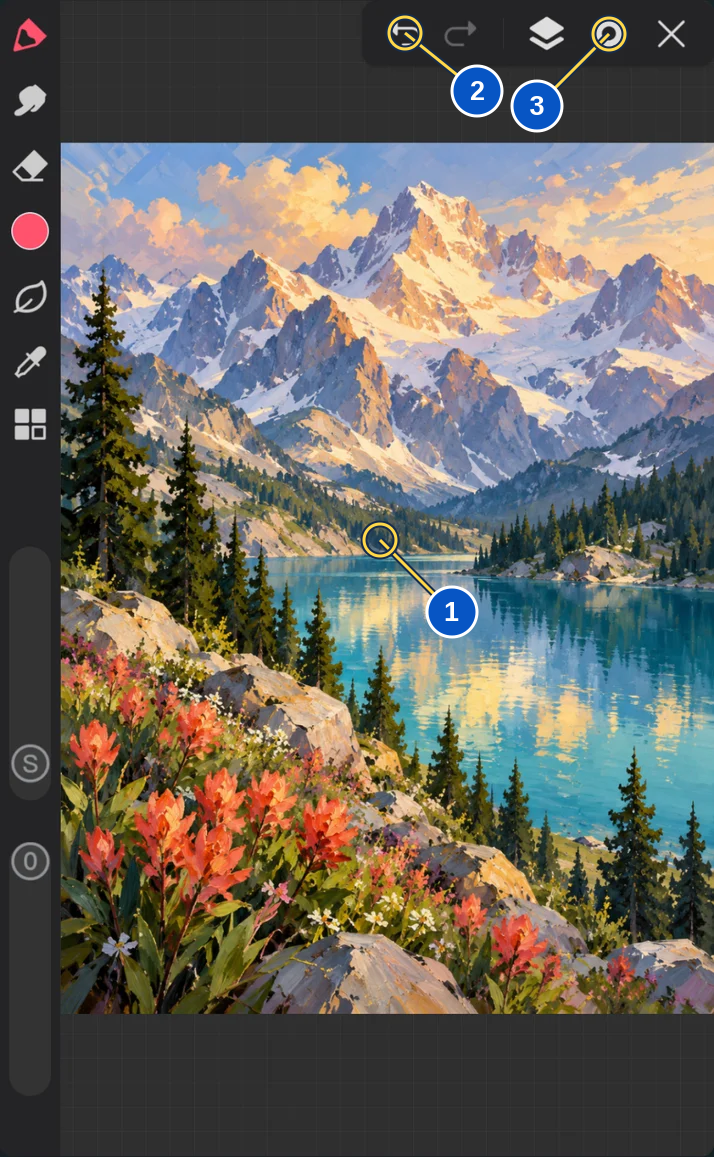
- Canvas navigation area
Use two fingers within the canvas to navigate; view zoom does not change pixel dimensions.
- Undo and redo
Check the result with the buttons before trying enabled gestures.
- Editor settings
Open the gear menu and inspect the display and gesture options available in your version.
1. Open a replay
- Open artwork with a recording and choose Time-lapse replay under Save and export.
- Play it and inspect the process. Replay needs existing recording data; it cannot reconstruct drawing steps from a finished image.
- Artwork created in older versions or imported from elsewhere may not contain a complete recording.
2. Export a video
- Use the replay page’s video export controls and choose the quality options offered by that version.
- Longer recordings need more processing time and storage. Keep the app running until it finishes.
- Open the saved video in a system player and check playback before sharing.
3. Keep the process
- Keep an artwork backup containing the recording if you want to export replay again later.
- Exporting a still image does not preserve the process. Importing an image cannot generate its earlier drawing steps.
- For missing replay or failed exports, keep the original artwork, note the app version and error, and send feedback.
4. Check the available recording
- Inspect whether replay includes the expected stages. A finished imported image or an older draft without recordings cannot reconstruct earlier drawing steps.
- New steps recorded after import are different from any historical recording in the source. A complete finished image does not prove a complete replay.
- To migrate replay, use a backup that includes recording data and check it in the restored copy.
5. Resolution and proportions
- Versions with the relevant capability offer options such as 1080p and 720p. Follow the choices in the actual export panel.
- Higher output resolution cannot recover missing detail in the artwork. Long recordings and larger output need more processing time and space.
- Keep the app running until export and saving or sharing finish. Complete the system panel’s final save step when storing a file.
6. Check the entire video
- Play from the start, then seek to the middle and end to confirm that the export is complete.
- Check orientation, proportions, drawing changes and the final image. A thumbnail alone does not establish successful playback.
- For failures, keep the artwork and recording and report the chosen resolution, device, version and error text.
Supplement: workflow illustration
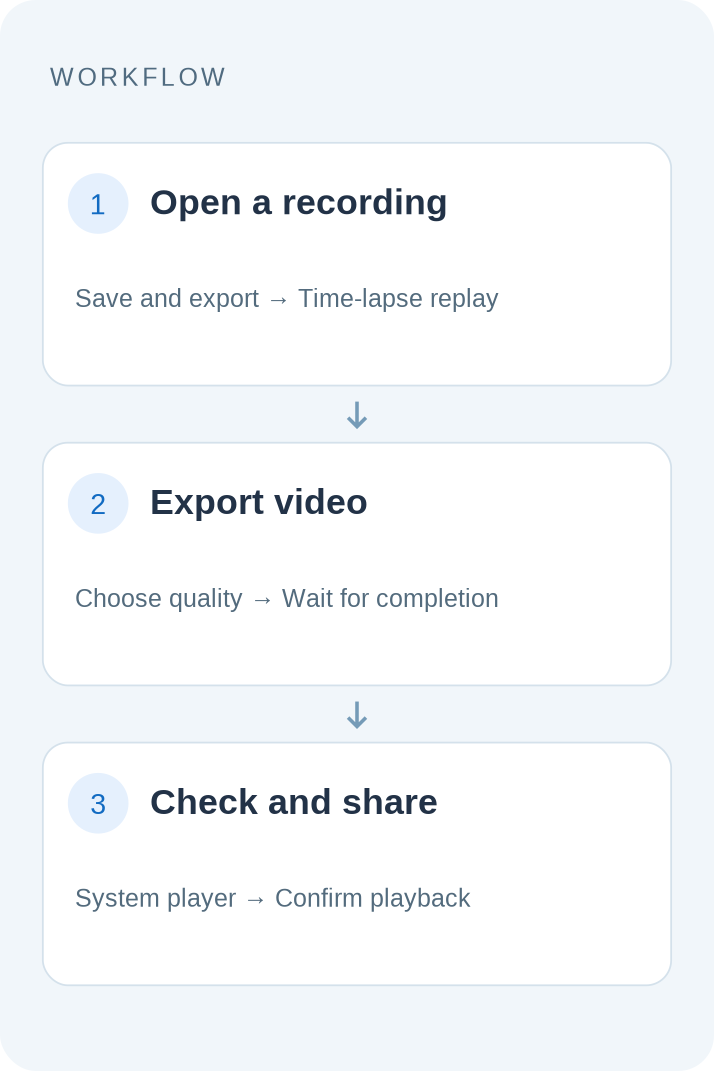
Replay files compared
Swipe the table sideways to see all columns.
| File or data | What it contains | Use |
|---|---|---|
| Finished image | Pixels at one point in time. | Sharing the artwork’s appearance. |
| Recording data | The drawing process actually recorded. | In-app replay or another video export. |
| Exported video | An encoded playable video. | Playback or social sharing. |
| Artwork backup with recording | Editable artwork and the recording included in that backup. | Restoring and checking or exporting replay again. |
Troubleshooting
Why does an imported image have no earlier drawing process?
An image contains finished pixels, not its earlier steps. Those require recording data saved with the original artwork.
Why is video export slow?
Long recordings and high resolution require more resources. Check space, keep the app running and try a lower available resolution if needed.
Why is replay incomplete after restoration?
Check whether the source backup included recording data and whether the original already lacked stages. Keep the ZIP and original for investigation.
Try it yourself
Draw and save a new practice artwork in three stages, check those stages in replay, export a video, and inspect its beginning, middle and end.