 DrawPiko
14 / Advanced
Text and fonts
Enter text, choose a font, inspect typography and place it in your artwork.
More tools → Text → Enter content → Font and typography → Confirm placement.
Platforms and interface differences
One handbook for Android · iOS · HarmonyOS. The core workflow is shared. Button positions, system file pickers and stylus capabilities vary by platform, screen and version. App captures are labeled Android or iOS. Numbered markers match the controls and explanations; workflow diagrams are labeled separately. Follow the controls in your installed version.
Follow the screen
Numbers identify controls or interaction areas. Expand each screen for instructions; open the image to enlarge it. Positions can differ by platform.
01 Find more drawing tools iOS
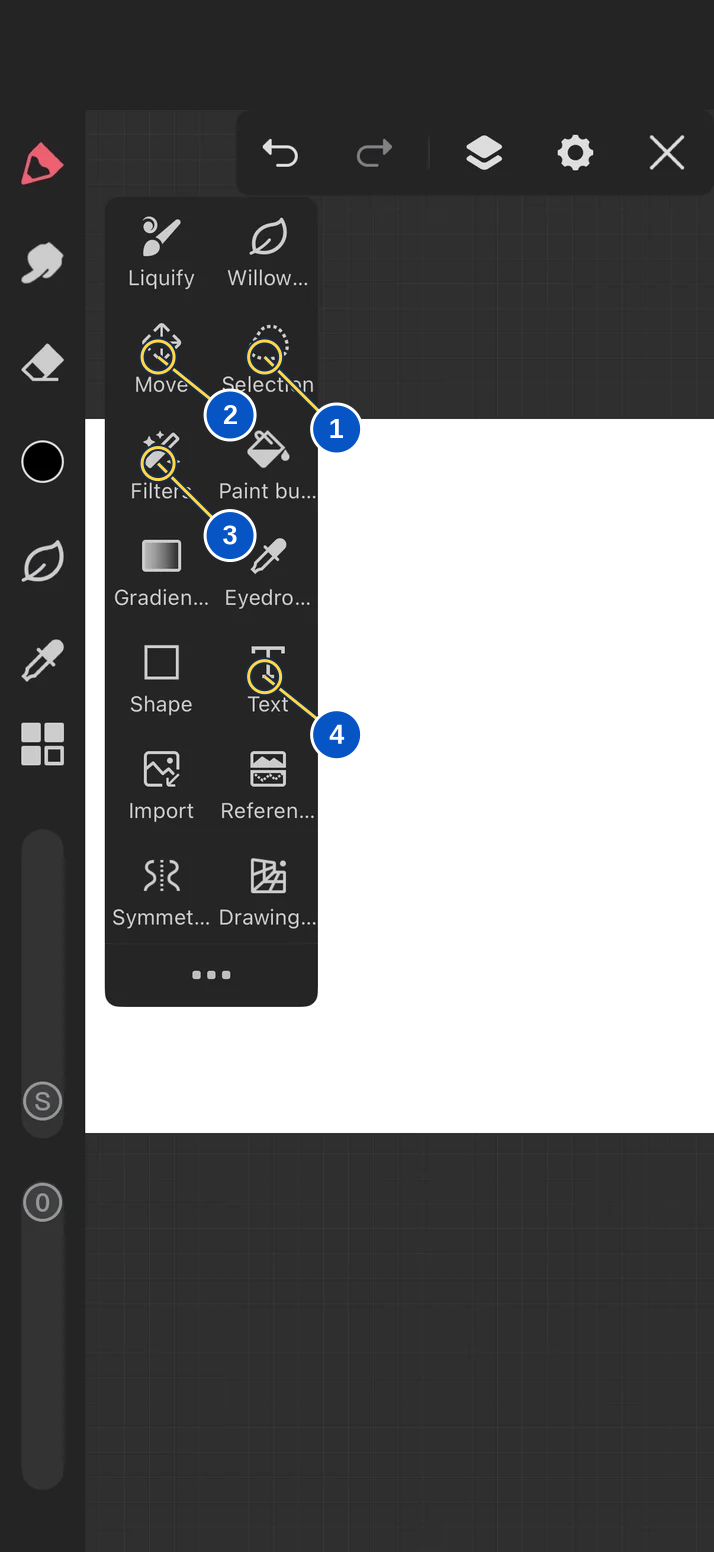
- Selection
Create a region before local drawing or further editing.
- Move
Check the target layer or selection before moving content.
- Filters
Try effects on a copied layer and compare before and after.
- Text
Enter text editing and check typography before placement.
02 Text typography and confirmation iOS
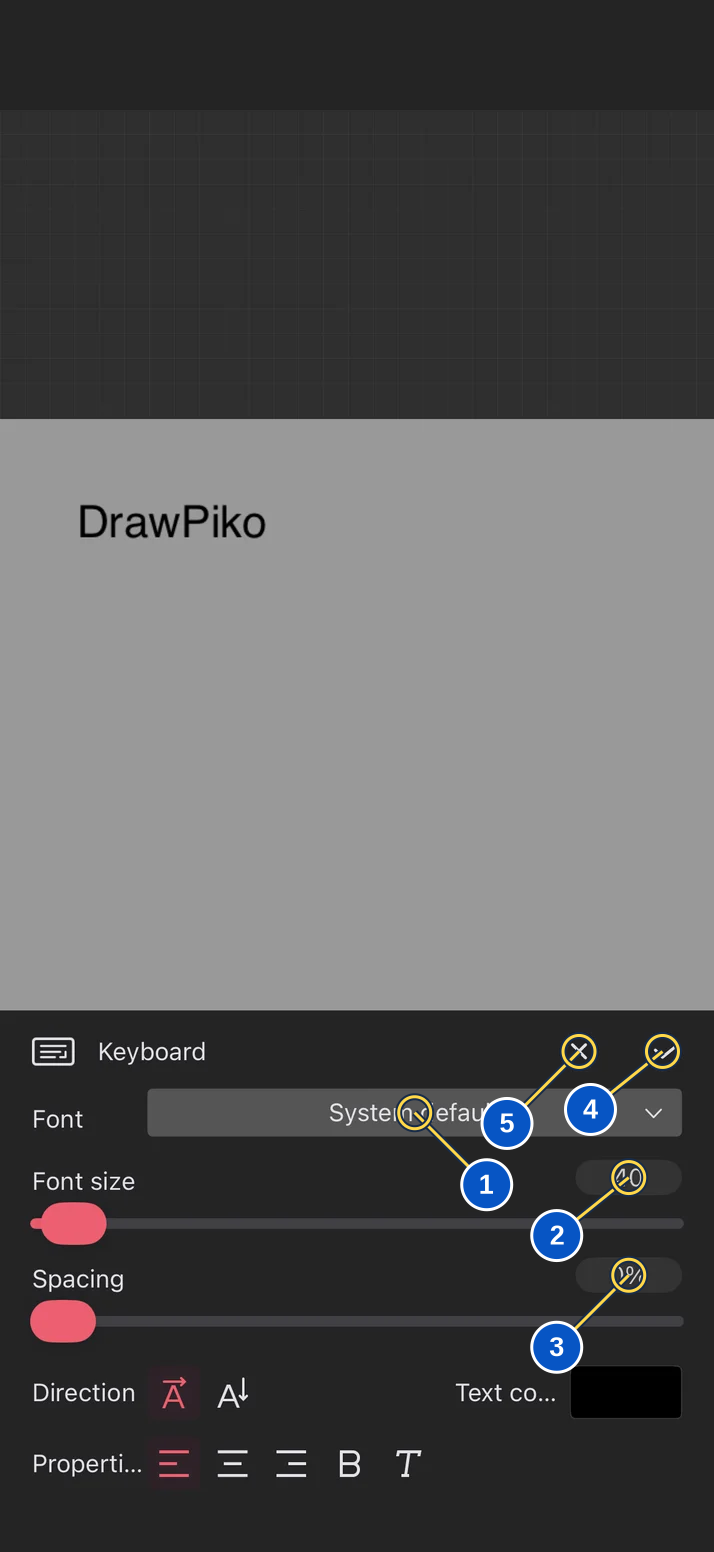
- Font
Open the font list and test the actual characters in your artwork.
- Font size
Change size and inspect the preview for canvas overflow.
- Character spacing
Adjust spacing gradually and check readability at the final sharing size.
- Confirm text
Confirm content and typography, then finish placement as prompted.
- Cancel editing
Leave here when you do not want the current text.
1. Enter and preview text
- Choose Text in More tools, enter the intended content and inspect the preview.
- Test a short phrase including the actual scripts and punctuation you need. Whitespace alone may produce no visible result.
- If the app reports that text is too large, reduce size or split long content instead of repeatedly submitting the same oversized settings.
2. Choose a font and typography
- Select an available font in the font picker. For custom fonts, use the app’s font-import control and a supported font file.
- Missing glyphs may appear as fallback fonts or boxes. Test the actual Chinese, English and symbols in your design.
- Adjust size, alignment, character spacing, line spacing or direction where offered, reviewing the complete preview after each change.
3. Confirm and position
- After confirming content and typography, use placement or transform controls and check position, size and cropping.
- Leave room around important text. Zoom in for strokes and out for the overall information hierarchy.
- Check content and font before committing, then save and reopen. In an exported image, the text is part of the finished picture.
4. Keep the source and check delivery
- Retain the original text and information about its font file for later edits or migration. Follow the permissions of your font license.
- After merging, rasterizing or image export, do not assume another app can edit the original text parameters independently.
- For PSD handoff, check font, wrapping and appearance in the destination app and supply a finished preview if useful.
Supplement: workflow illustration
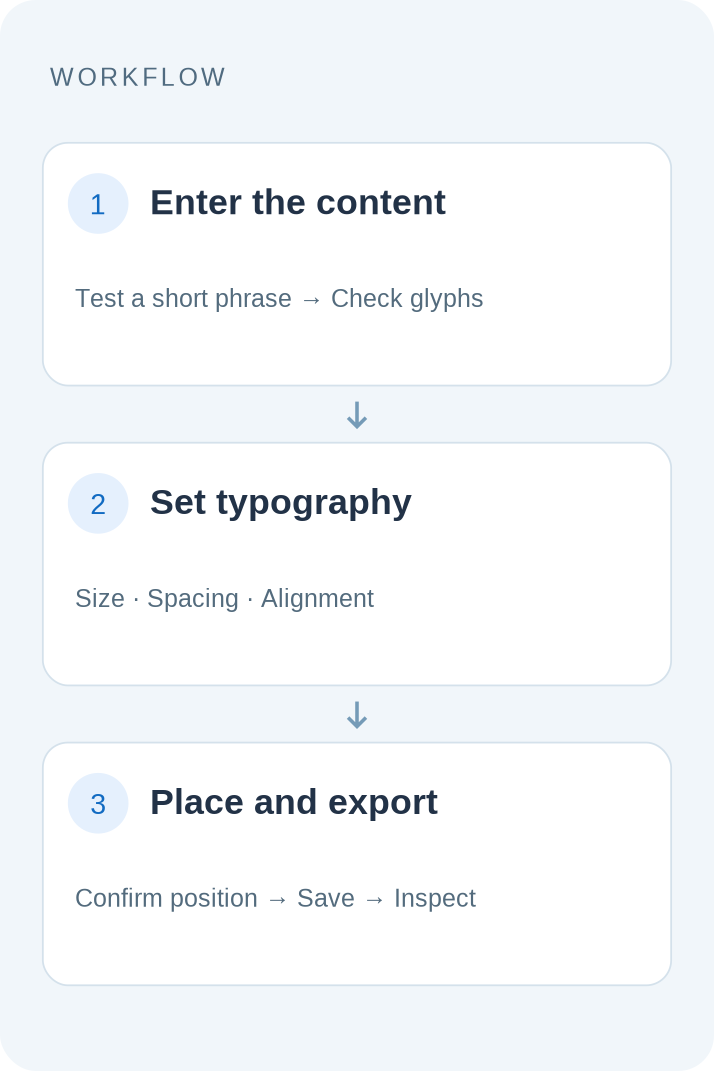
Typography checklist
Swipe the table sideways to see all columns.
| Item | How to inspect | Common issue |
|---|---|---|
| Content and wrapping | Read the actual preview character by character. | Missing punctuation or changed wrapping. |
| Font | Test the scripts and symbols actually used. | Missing glyphs, fallback or absent fonts on another device. |
| Size and spacing | View at the final use size. | Readable while zoomed in but too small when shared. |
| Position and margins | Check space around important text. | Cropping during export or collage creation. |
Troubleshooting
Why are there boxes or missing characters?
Use a font with the required glyphs, check its import and retain the original font file.
Why is text reported as too large?
Reduce font size, shorten content or split it into separate placements, then inspect the entire preview.
Try it yourself
Create a short title with Chinese and English, compare two fonts and spacing choices, then save and export. Inspect readability at sharing size.