 DrawPiko
05 / Layers
Layers and layered drawing
Separate line art, color and detail; understand opacity and blending.
Editor stacked-squares icon → Layers; select a layer to open its actions or settings.
Platforms and interface differences
One handbook for Android · iOS · HarmonyOS. The core workflow is shared. Button positions, system file pickers and stylus capabilities vary by platform, screen and version. App captures are labeled Android or iOS. Numbered markers match the controls and explanations; workflow diagrams are labeled separately. Follow the controls in your installed version.
Follow the screen
Numbers identify controls or interaction areas. Expand each screen for instructions; open the image to enlarge it. Positions can differ by platform.
01 Identify targets in Layers Android
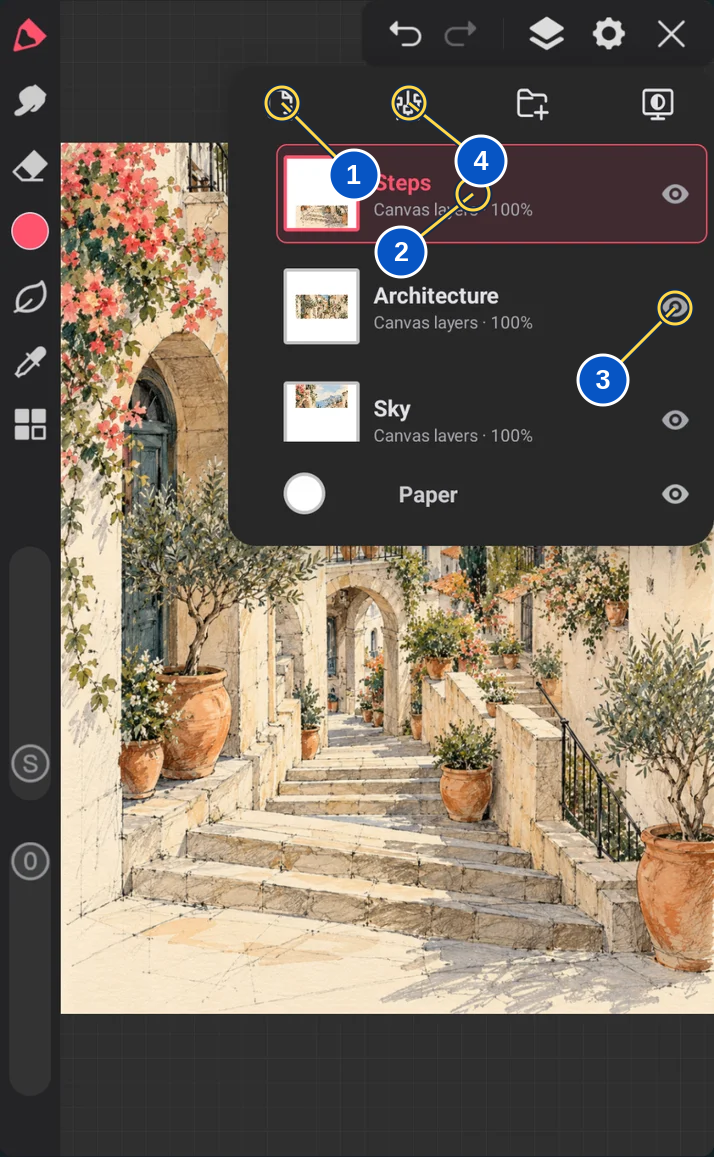
- Add layer
Add a blank layer to keep line art and color separate.
- Selected layer
Tap a row to select the editing target; the highlighted border marks it.
- Visibility
Toggle the eye icon to hide or show the layer without deleting it.
- Layer adjustments
Inspect layer adjustments and check the selected layer before acting.
02 Protection and masks in Layer settings iOS
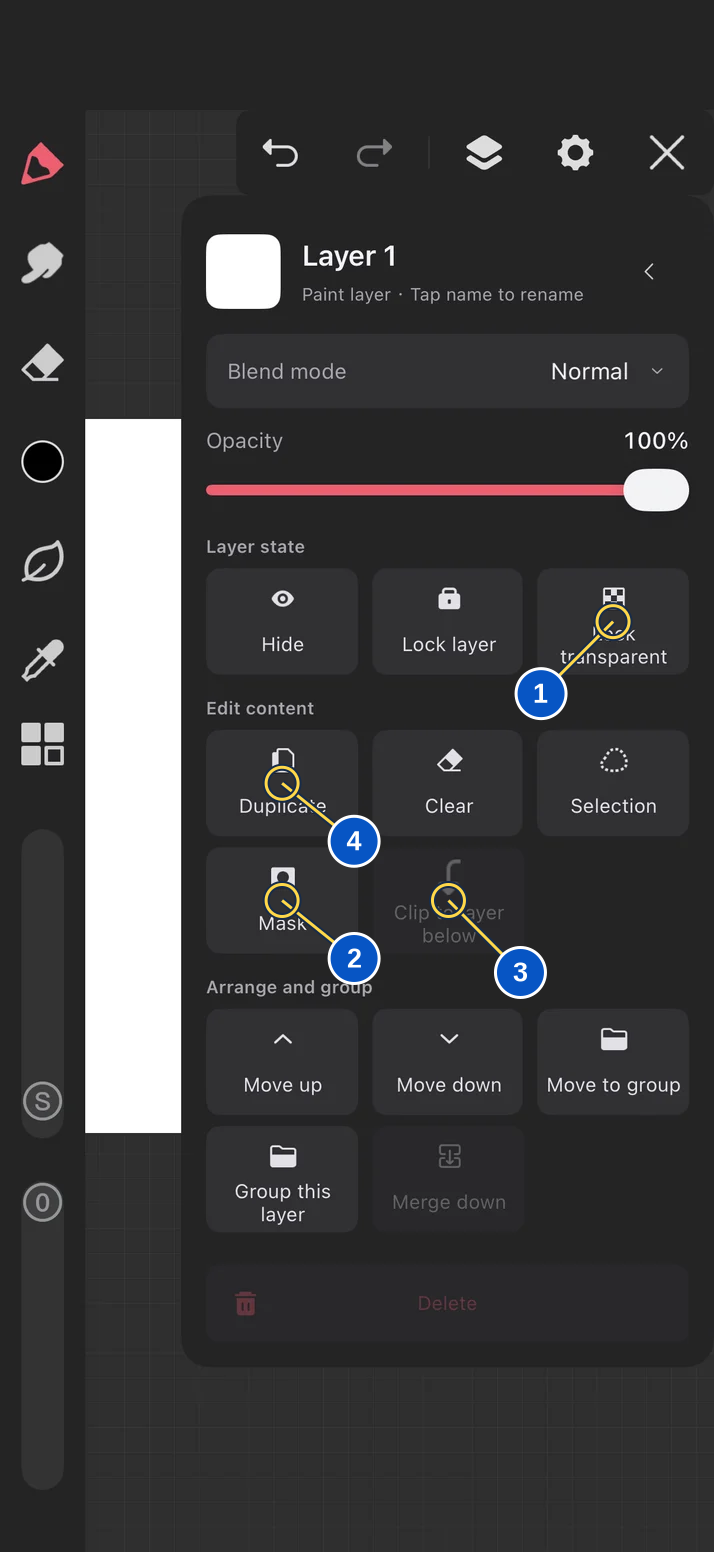
- Alpha lock
Restrict painting to existing pixels on this layer; check the selected layer first.
- Edit mask
Enter mask editing, then check whether the mask or original layer is active.
- Clipping
This is separate from mask editing; check the receiving layer below.
- Duplicate layer
Keep a copy before trying complex edits.
1. Read the Layers panel
- Tap the stacked-squares icon to open Layers, then select the row you want to edit.
- Use Add layer to create a blank layer. Name separate layers for line art, color and details.
- Toggle a layer’s visibility to identify its contents. Hiding a layer does not delete it.
2. Order and opacity
- Change the stacking order in Layers. Content on upper layers usually covers content below.
- Lower a reference layer’s opacity to fade it. Layer opacity and brush opacity affect different things.
- Open the selected layer’s settings to find available blend, lock and mask controls. Blending depends on the layers underneath.
3. Organize safely
- Duplicate the artwork or export an editable backup before merging. Merging changes your ability to edit the layers separately.
- Clipping and masks limit what is visible. Check their dependent layers and stacking order first.
- If coloring or erasing has no effect, check the selected layer, locks, visibility, selections and masks.
4. Build an editable layer stack
- Background, color, shadows, line art and highlights is one common bottom-to-top order. Adapt it to the work; the goal is to edit different purposes independently.
- Name important layers. After hiding a layer to inspect it, restore visibility before continuing.
- Use the layer list’s ordering controls. Move one layer and check occlusion instead of relying only on thumbnails.
5. Opacity, blending and locks
- Layer opacity affects the entire layer; brush opacity affects new strokes. Lowering layer opacity fades all its content together.
- Blend modes interact with content underneath. Normal is useful for direct color comparison; try other modes on a copy and inspect the result.
- Locks can restrict drawing or layer operations. Alpha lock and locking the whole layer have different purposes; read the active setting.
6. Check before merging and organizing
- Hide and show relevant layers to identify them and confirm selection before duplicating, moving or merging.
- Keep a copy or complete backup before merging layers involving masks, clipping or special blends, then check the merged appearance.
- After exporting PSD, inspect blending, masks and text in the destination app. A file opening successfully is not proof of full fidelity.
Layer controls compared
Swipe the table sideways to see all columns.
| Control | Target | Useful for |
|---|---|---|
| Visibility | Whether the layer is displayed. | Hiding references or identifying contents. |
| Layer opacity | Existing and new content throughout a layer. | Fading a reference or adjusting overall strength. |
| Alpha lock | Existing nontransparent areas. | Recoloring without changing the silhouette. |
| Clipping | Display constrained by the layer below. | Adding shadows inside a base-color shape. |
| Mask | A separate control over layer visibility. | Hiding or restoring parts while retaining content. |
Troubleshooting
Why is an existing layer invisible?
Check visibility, opacity, order, blend mode and masks. Opaque upper-layer content may also cover it.
Why can I not draw on the selected layer?
Check locks, whether you are editing a mask, active selections and nearly transparent brush settings.
Why did colors change after merging?
Undo and preserve the original structure. Check the visible layers involved in blending and clipping.
Try it yourself
Paint a simple object using line-art, color and shadow layers. Change color-layer and shadow-layer opacity separately and confirm the line art is unaffected.