 DrawPiko
11 / Advanced
Selections and magic wand
Limit editing, combine selections, and troubleshoot missed or leaking areas.
More tools → Selection → selection method, combination mode or wand settings.
Platforms and interface differences
One handbook for Android · iOS · HarmonyOS. The core workflow is shared. Button positions, system file pickers and stylus capabilities vary by platform, screen and version. App captures are labeled Android or iOS. Numbered markers match the controls and explanations; workflow diagrams are labeled separately. Follow the controls in your installed version.
Follow the screen
Numbers identify controls or interaction areas. Expand each screen for instructions; open the image to enlarge it. Positions can differ by platform.
01 Find more drawing tools iOS
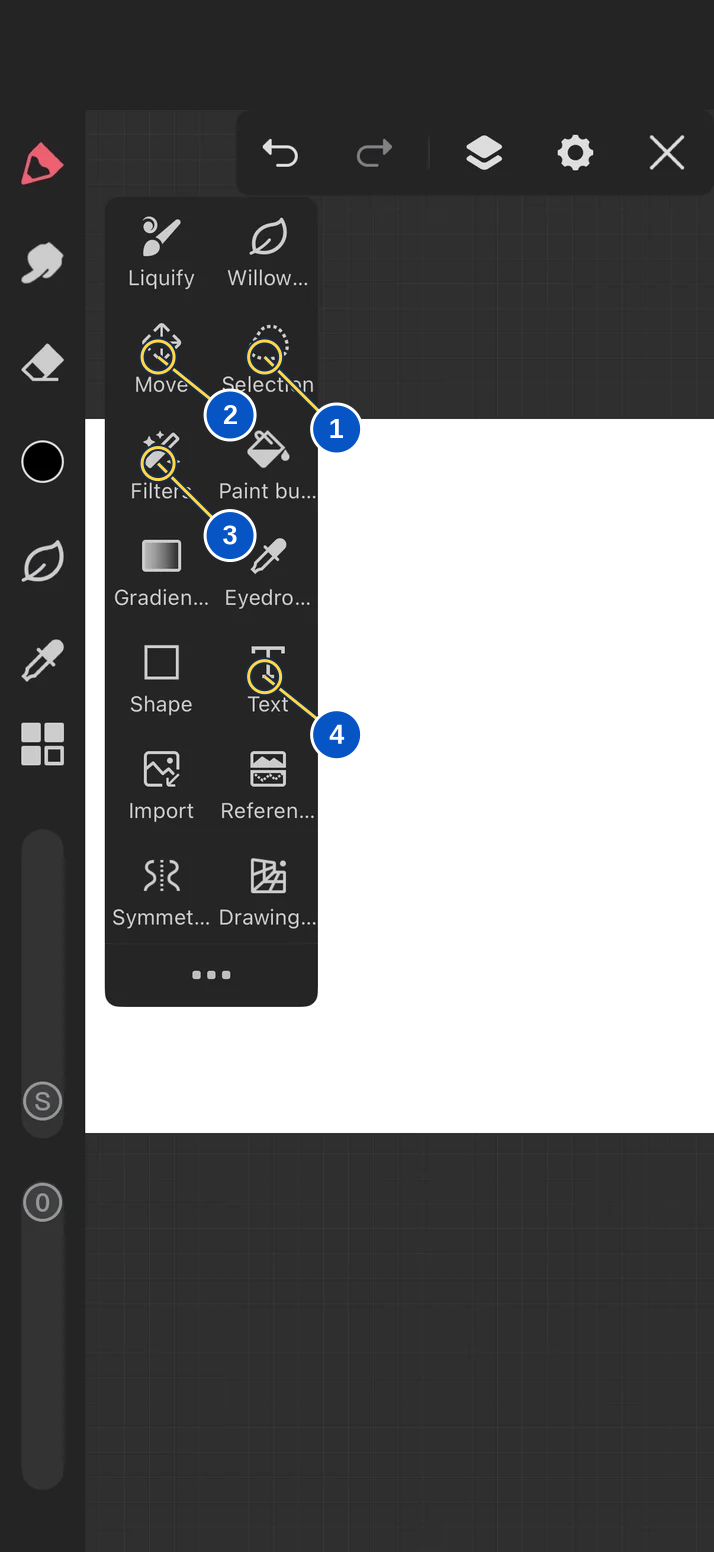
- Selection
Create a region before local drawing or further editing.
- Move
Check the target layer or selection before moving content.
- Filters
Try effects on a copied layer and compare before and after.
- Text
Enter text editing and check typography before placement.
02 Read the selection toolbar iOS
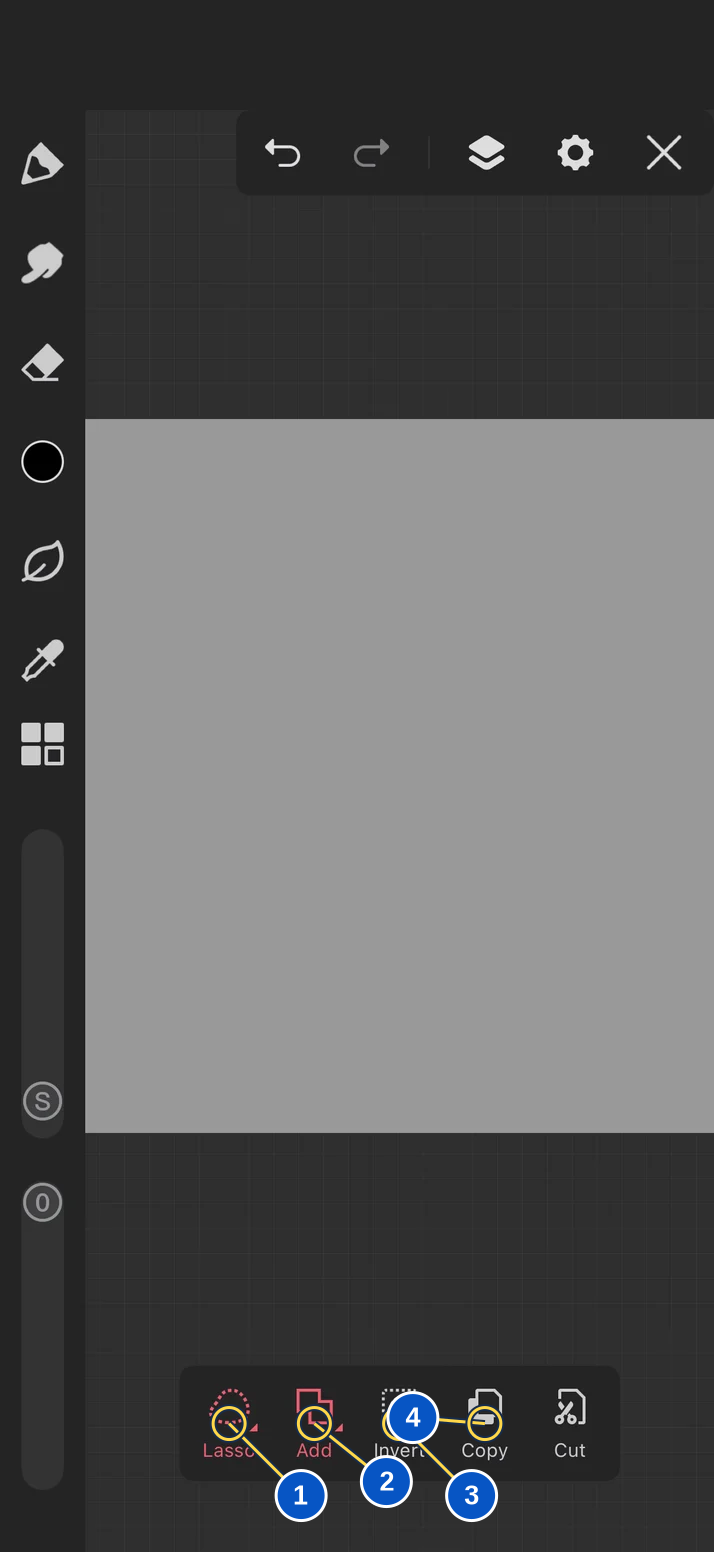
- Selection shape
Choose among the lasso, shapes or wand offered by the current panel.
- Combination mode
Check Add, Subtract or another combination mode before selecting again.
- Invert
Swap selected and unselected regions, then inspect the boundary.
- Copy selected content
Check the current layer and region before copying its selected content.
1. Create and inspect a selection
- Choose Selection in More tools and use the rectangle, ellipse, freehand or magic-wand options offered by the panel.
- Practise on a layer with visible color. Inspect the boundary, then paint to confirm which region is affected.
- If nothing appears, check whether the selection overlaps actual content before increasing tool strength.
2. Replace, add, subtract and intersect
- Replace establishes a new selection. Add keeps the existing selection and adds another area. Subtract removes part of it.
- Intersect keeps only the overlap. Check the active combination mode before drawing the second region.
- Undo or rebuild a simple selection between experiments. Use a copy with colored shapes to inspect complex results.
3. Give the wand the correct reference
- The wand selects by color similarity. Choose Current layer, Visible layers or an assigned Reference layer; names and order follow the actual panel.
- Current layer on an empty layer usually cannot detect line art above it. Choose a source containing the line art when using those boundaries.
- Change tolerance gradually and compare. Expansion grows or contracts the edge; anti-aliasing smooths regular-canvas edges. Do not assume settings from another app exist here.
4. Invert, deselect and continue
- Invert swaps the selected and unselected regions. Check the canvas bounds and existing selection first.
- Use Transform to move selected content, or Deselect to draw across the whole layer. Switching to Brush does not necessarily deselect.
- Inspect edges at normal and enlarged zoom for gaps or accidentally removed content.
Supplement: workflow illustration
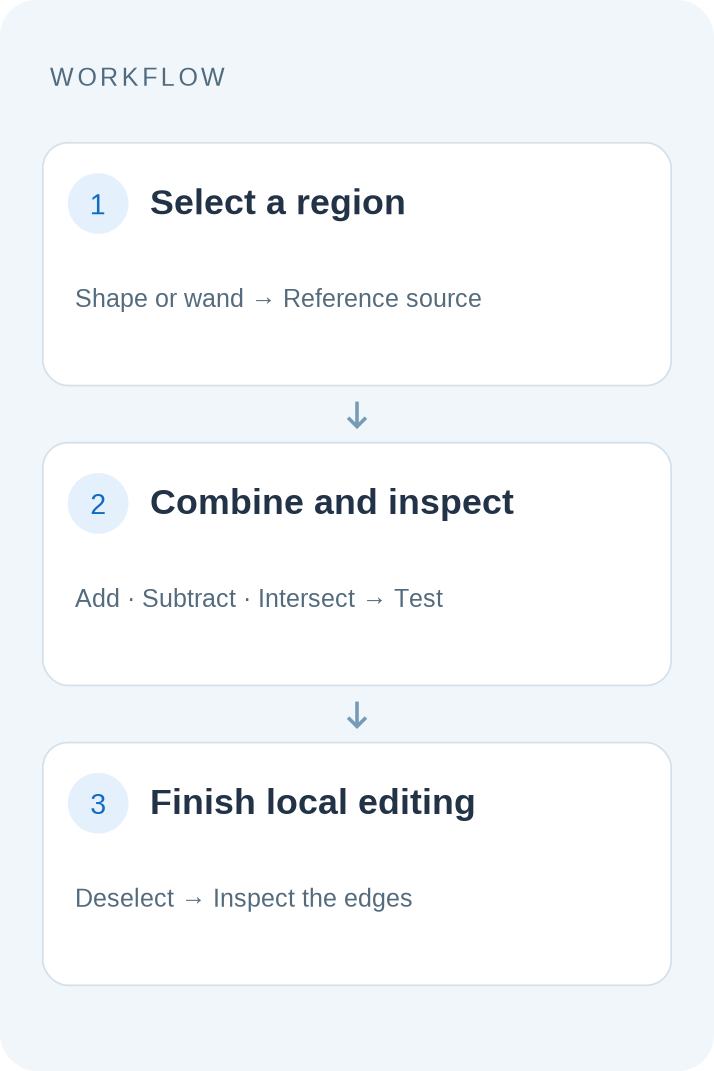
Selection controls
Swipe the table sideways to see all columns.
| Control | Effect | Check first |
|---|---|---|
| Replace / Add / Subtract / Intersect | Combines new and existing regions. | The highlighted mode before the second selection. |
| Reference source | Chooses layers used for wand boundaries. | Whether an empty current layer can see the needed outline. |
| Tolerance | Controls selection of similar colors. | Change gradually and select again to compare. |
| Expansion | Grows or contracts the boundary. | Missing details or gaps at edges. |
| Invert / Deselect | Swaps the region or removes the editing restriction. | Whether you still intend to edit only a local area. |
Troubleshooting
Why did the wand select the entire image?
Rebuild the selection and check blank layers, reference source and gaps before adjusting tolerance.
Why did subtraction remove nothing?
Check Subtract mode and whether the new region overlaps the existing selection.
Try it yourself
Paint two overlapping shapes and practise Add, Subtract and Intersect. Draw a different color inside each result to confirm its area, then deselect.